Your first domain Step 4 of 35
Add your first domain
Which domain to start with, how to add it on the Domains page, and how groups and tags keep a long list of domains manageable.
Updated
Adding a domain is how monitoring starts. It takes a minute, and nothing about how your mail is delivered changes when you do it: that only happens later, if and when you choose to tighten the policy.
Which domain to start with
Start with the domain your business sends most of its mail from: the part after
the @ in your staff’s addresses, such as example.com. That’s where the
reports will be most useful soonest, and where spoofing would hurt most.
Domains that never send mail (a parked domain, a domain that only hosts a website) are worth adding too: the setup wizard locks them down so nobody can send as them.
Add it
- Choose Domains in the left sidebar.
- Type the domain, for example
example.com. - Optionally, give it a Group and some Tags (comma separated). Both
are for filtering: a group such as
Marketing, tags such asprimary. - Choose Add domain.
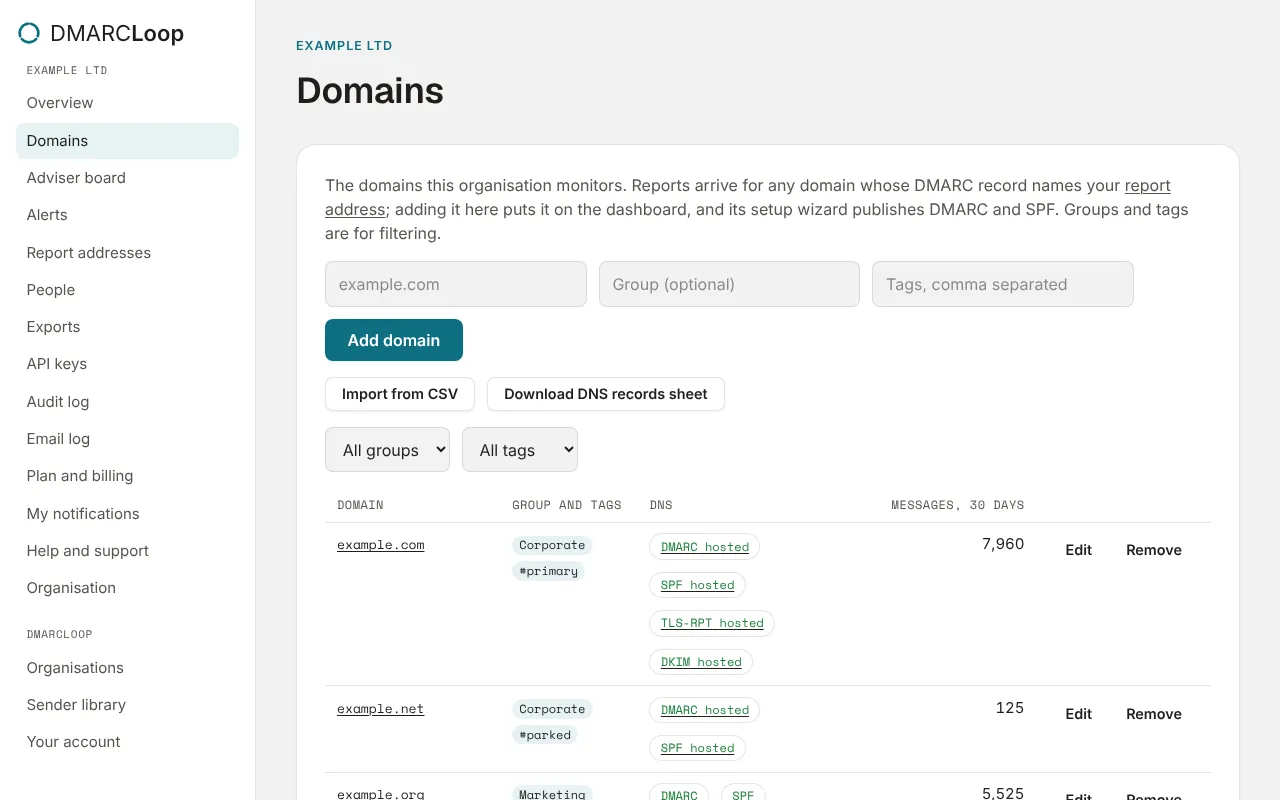
The domain’s setup wizard opens straight away; see Publish the DNS records. If you’d rather come back to it, choose Skip for now: the domain’s DNS column then shows Set up until you do.
Adding a domain needs the Admin or Owner role. If the plan’s domain limit is reached, the domain isn’t added; see Choose a plan.
What you see on the Domains page
Each domain is listed with its group and tags, its DNS status (a pill for DMARC and SPF, green when the record is in place) and its messages over the last 30 days. Once you have groups or tags, All groups and All tags filter the list.
- Edit changes a domain’s group and tags.
- Remove stops monitoring it. Its report data stays until your plan’s report history removes it.
- Import from CSV adds many domains at once; see Import domains in bulk.
- Download DNS records sheet is a CSV of every record your domains need, to hand to whoever edits your DNS.
Reports can arrive before you add a domain
Reports are sent to your organisation’s report addresses, not to one address per domain. So if a domain’s DMARC record already names your address, its reports arrive whether or not you’ve added it. The Overview lists those domains under Reports for domains you haven’t added, each with an Add domain button.
Next
Stuck? Reply to any email DMARCLoop sends, or contact us — a person reads it.