Getting started Step 3 of 35
Set up two-factor authentication
Add a code from an authenticator app to every sign-in, save your backup codes, add a passkey, and know what to do if you lose your phone.
Updated
Your DMARCLoop sign-in can publish DNS records for your domains. Protect it with more than a password. Your account has three things: two-factor authentication, passkeys and your password. Open it from Your account, in the left sidebar under the product name.
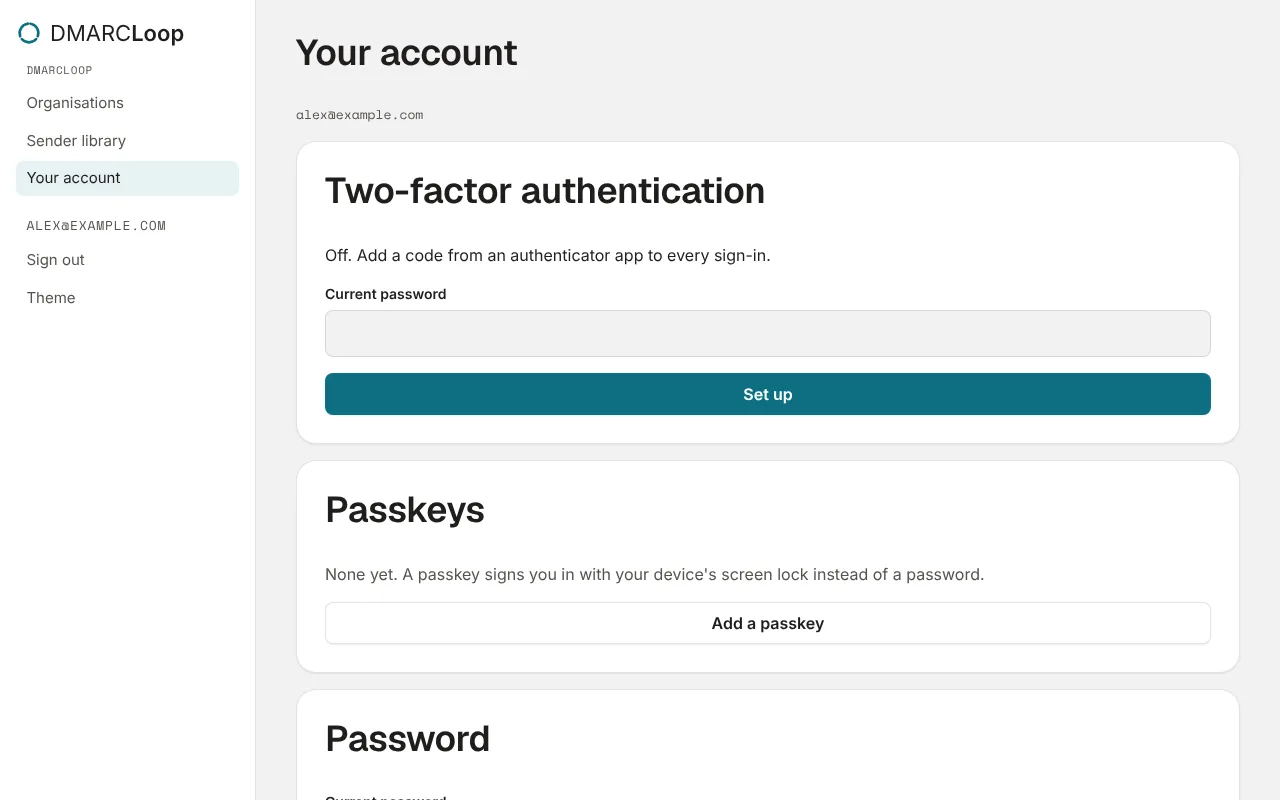
These are your own settings: they apply to you in every organisation you belong to, and nobody else can change them for you.
Turn on two-factor authentication
You need an authenticator app on your phone, such as Google Authenticator, Microsoft Authenticator or 1Password.
- Under Two-factor authentication, enter your Current password and choose Set up.
- Scan the QR code with your authenticator app, or type the key shown under it into the app by hand.
- Save the backup codes. Each one works once if you lose your phone. Keep them somewhere safe that isn’t the phone, such as your password manager. They aren’t shown again.
- Enter the six-digit code from the app in Code from the app and choose Turn on two-factor.
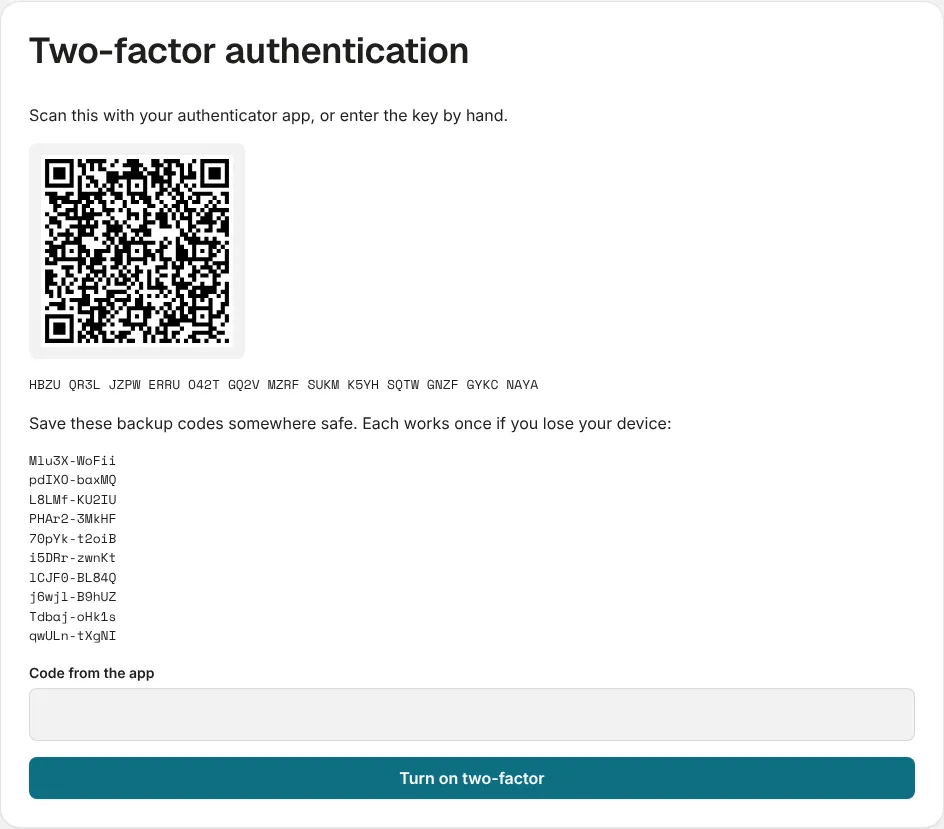
From then on, signing in asks for a code from the app after your password. Tick Trust this device for 30 days on a computer only you use, and it won’t ask again on that device for 30 days.
Signing in without your phone
On the code screen, choose Use a backup code instead and enter one of your backup codes. Each code works once.
If you have lost the phone and the backup codes, ask support or a colleague to contact us. Our staff can reset two-factor on your account once we have confirmed who you are; then set it up again.
To turn two-factor off, enter your Current password and choose Turn off.
Passkeys
A passkey signs you in with your device’s screen lock (a fingerprint, face or PIN) instead of a password. Choose Add a passkey and follow your browser’s prompts. Next time, choose Sign in with a passkey on the sign-in page.
Each passkey is listed with the date it was added, and Remove deletes it. A passkey belongs to the address it was made on: if your provider gives you DMARCLoop under its own address, add a passkey there too.
Password
Change password needs your current password and a new one of at least 12 characters. Changing it signs you out everywhere else.
Forgotten it? Forgot your password? on the sign-in page emails you a link to set a new one.
Next
Stuck? Reply to any email DMARCLoop sends, or contact us — a person reads it.