Your account Step 21 of 35
Invite people and set their roles
Invite colleagues from People, choose what each role can do, and change or remove people and invitations. For MSPs, which clients each person sees.
Updated
Everyone who works in your organisation signs in as themselves. You bring them in from People, in the left sidebar; they shouldn’t sign up on their own, which would give them an organisation of their own instead.
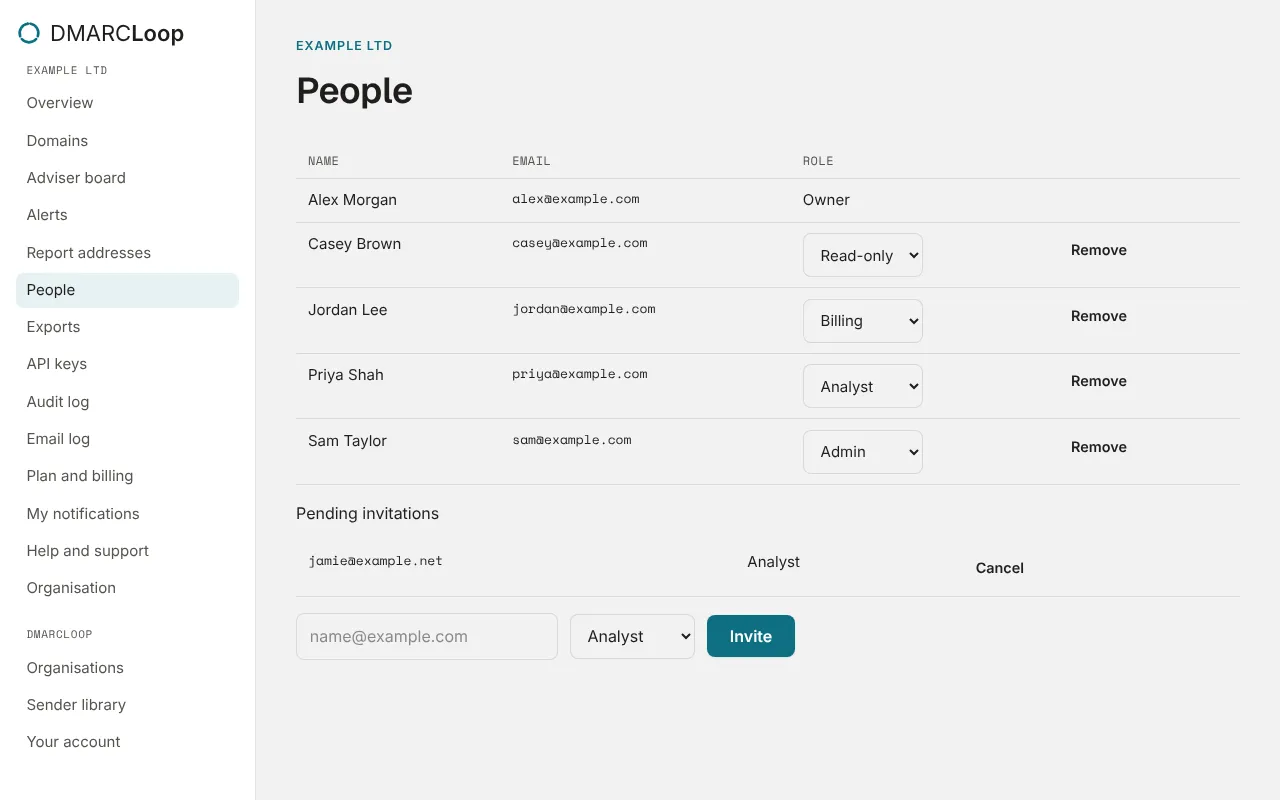
Invite someone
- Open People.
- Enter their email address, choose a role, and choose Invite.
The page says Invitation sent. They get an email with a link that works for seven days. If they don’t have a DMARCLoop sign-in yet, they create one with the invited address and confirm it; then the link shows You’ve been invited to join your organisation, with Accept and Decline.
Invitations not yet accepted are listed under Pending invitations, with Cancel. Each takes a seat in your plan’s user limit until it’s accepted or cancelled; inviting people at all is a plan feature (see pricing).
Inviting, changing roles and removing people needs the Admin or Owner role. Everyone else with access to People sees the list.
Roles
| Role | Can |
|---|---|
| Owner | Everything, including exporting all the organisation’s data and deleting it. The person who created the organisation. |
| Admin | Everything but the full export and deletion: domains and DNS records, people, billing, API keys, white-label and the audit log. |
| Analyst | Read every report, source, failure report and alert, and manage alert channels. Can’t add domains, change DNS records, invite people or see billing. |
| Read-only | Read reports and domains. |
| Billing | Plan and billing and the list of people only: no report, sender, DNS or failure-report data. |
Everyone, whatever their role, has My notifications and Help and support. Alerts are emailed to owners, admins and analysts; see Notifications and alerts.
Change or remove someone
- Change a role with the role list in their row. It takes effect at once.
- Remove takes them out of the organisation. Their sign-in still exists, for any other organisations they belong to.
Nobody can change their own role or remove themselves here, and the owner’s row can’t be changed.
In an MSP: which clients each person sees
In an MSP organisation, People has a Client access column. Owners and admins see All clients. For everyone else, choose All clients, including new ones, or tick the clients they may see. Someone with no clients ticked sees none.
In a client, people from the MSP have their MSP role, except that the MSP’s owner acts as an admin. See Clients, domains and who sees what.
Next
Stuck? Reply to any email DMARCLoop sends, or contact us — a person reads it.