Reports Step 20 of 35
Exports and scheduled reports
Download the domains sheet, a branded PDF report and the DNS records sheet, and email them weekly or monthly to people who can read reports.
Updated
Everything in an export is in the app already. Exports are for getting it to people and places that don’t sign in: a monthly report for management, a sheet for whoever edits your DNS, a CSV for your own spreadsheet. Exports, in the left sidebar, has them all.
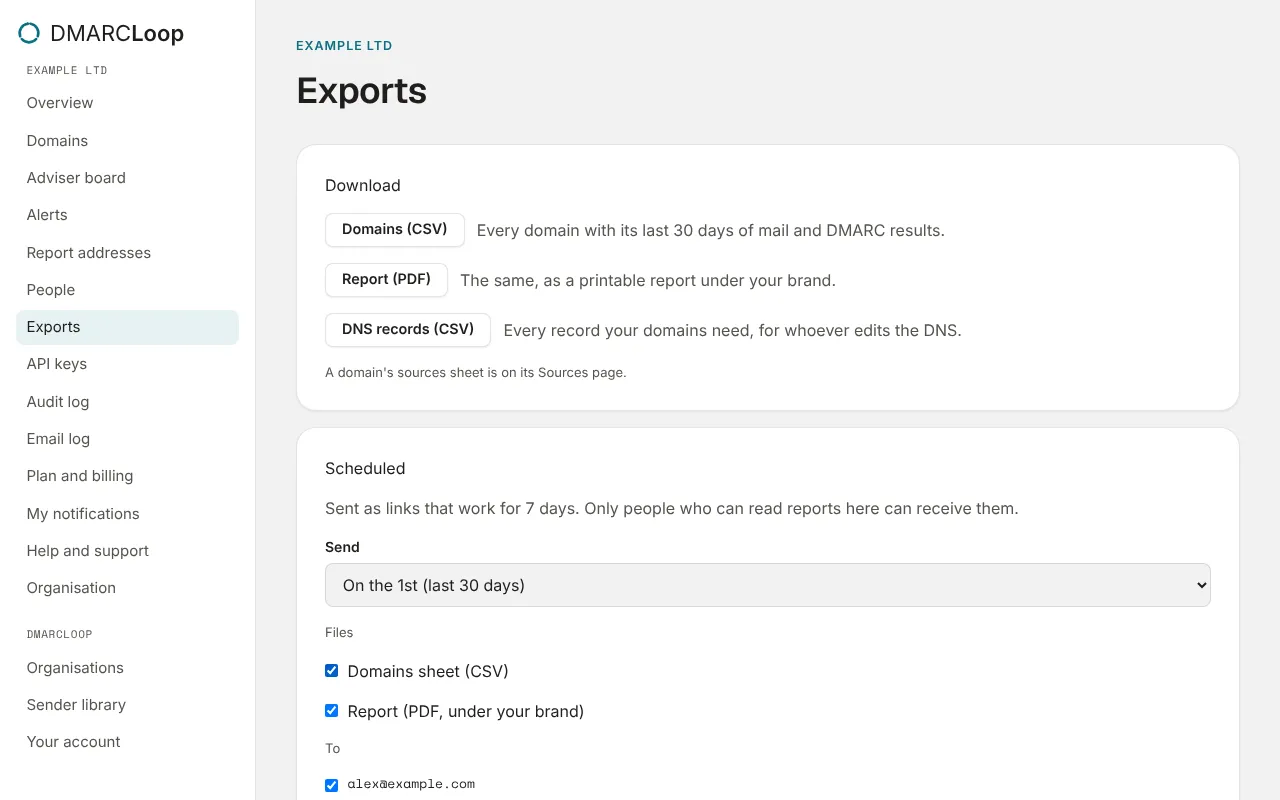
Download
- Domains (CSV): every domain with its last 30 days of mail and DMARC results.
- Report (PDF): the same, as a printable report under your brand.
- DNS records (CSV): every record your domains need, for whoever edits the DNS.
- Client usage (CSV), for MSPs: this month’s domains, users and volume per client.
A domain’s sources are on its Sources tab: Download sources (CSV).
Schedule
Under Scheduled, choose:
- Send: Never, Every Monday (last 7 days) or On the 1st (last 30 days).
- Files: Domains sheet (CSV), Report (PDF, under your brand), or both.
- To: the people in the organisation who receive it. Only people who can read reports here can be chosen, so the Billing role isn’t listed.
Choose Save schedule. Each send emails the chosen people links to the files, which work for 7 days. Last sent shows when the schedule last ran.
Changing the schedule needs the Admin or Owner role; anyone who can read reports can see it.
Under your brand
The PDF carries your organisation’s brand. For an MSP with white-label, that’s your product name and logo, for you and for each client.
Next
Stuck? Reply to any email DMARCLoop sends, or contact us — a person reads it.